Wallpaper signaling
Read these critical prerequisites first to get a deeper understanding.
A social operating system
What if one could give the user a sense of community without the burden of a fully immersive virtual world?
Wallpaper signaling
Imagine for a moment that your desktop wallpaper was that view of the square. Now imagine that this square had all the people you are friends with seated in it. Their avatars are doing what they themselves are doing. If they are listening to music, their avatar is, if they are working on a whiteboard, their avatar is. Icons above their head also show the activity they're actually engaged in.
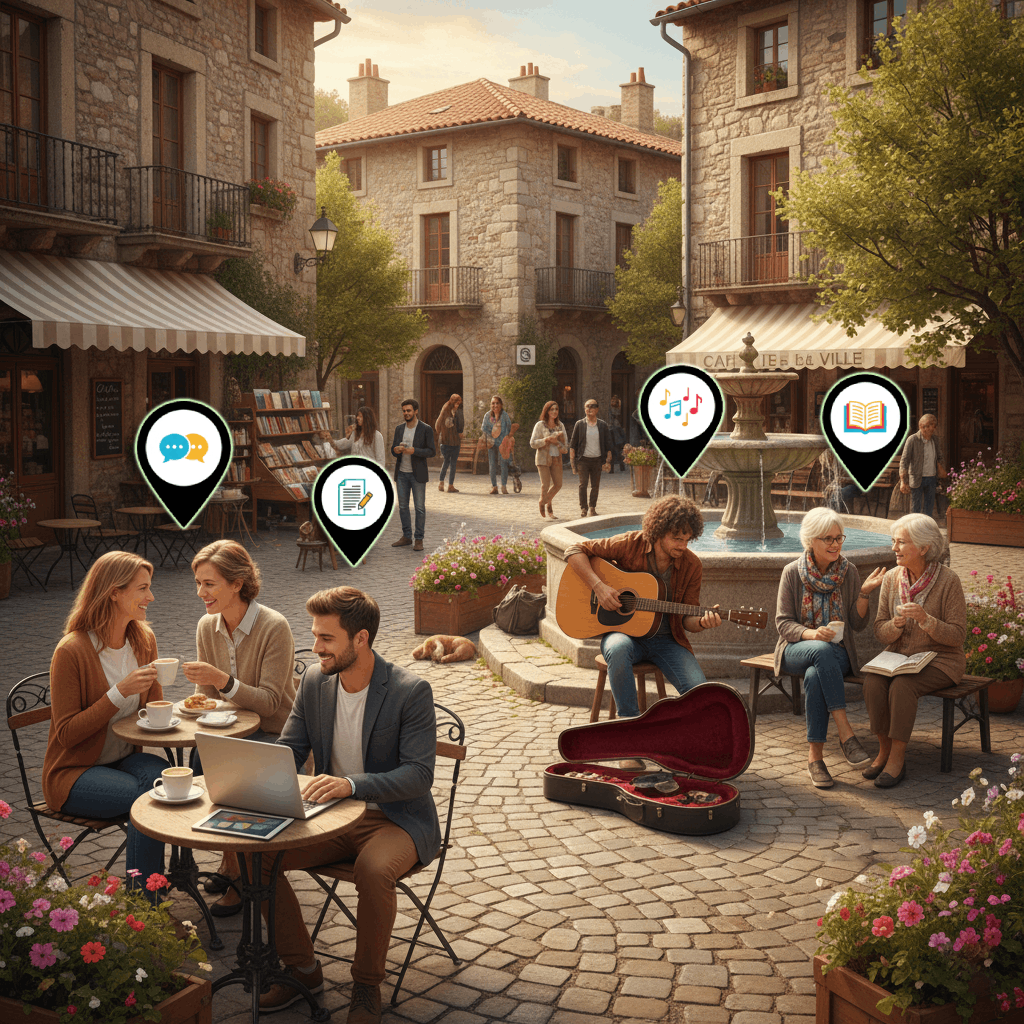
Rather than being actively controlled by their creators, these avatars automatically show up in this square based on whatever the people they represent are doing. It’s a form of signaling one’s actions.
Paper cylinder
One can imagine the wallpaper as if it were a paper cylinder surrounding the user.
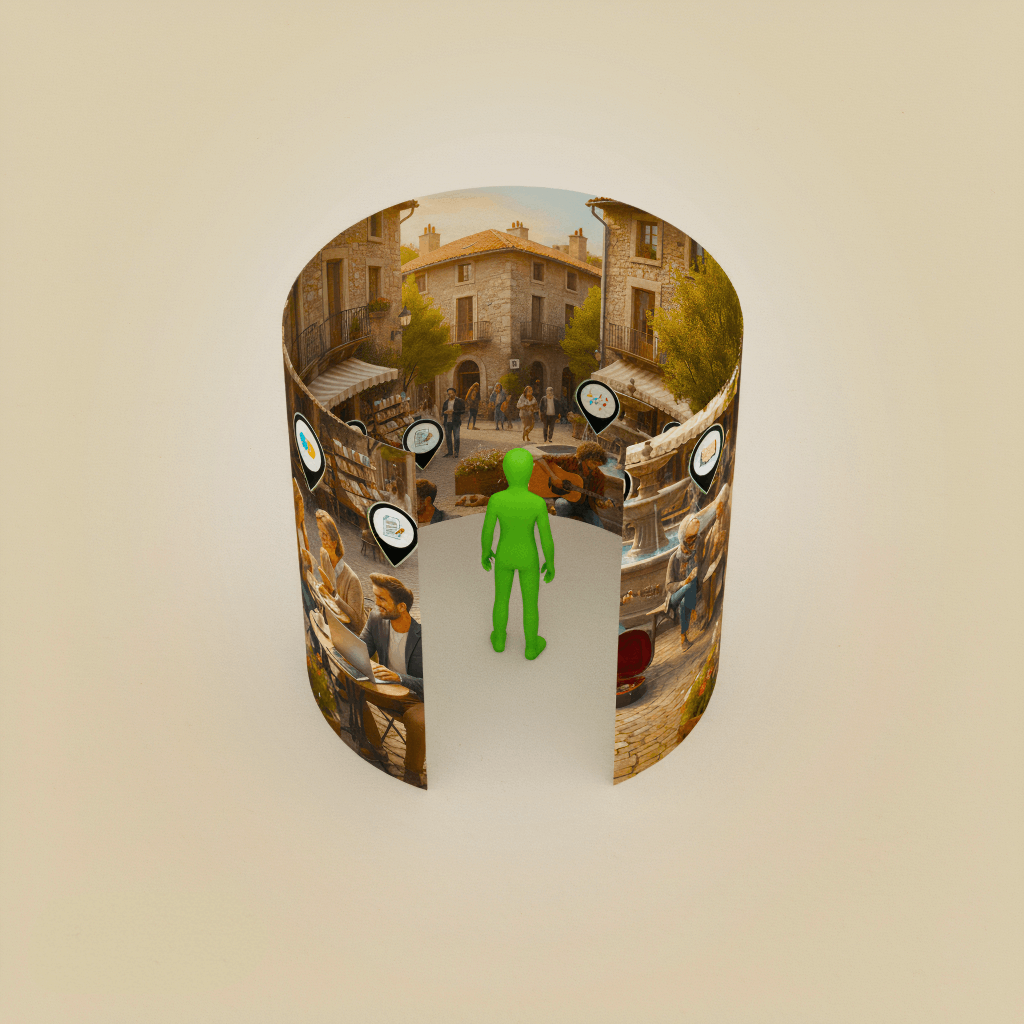
AR navigation: Turning one's face to the left will reveal one's home space.
Grabbing the empty space and pulling it in front of you will allow you to position your home in front of rather than on your left if you want to face a particular direction.
PC: Clicking and dragging will reveal one's home space to the left.
Mobile: Swiping right will move one to one's home space to the left.
In reality, the space is 3D but it’s easier to imagine the navigation this way.
Safety and privacy
No one in the square can hear you or see you. In fact, what you're seeing is like a 2D image that frequently changes based on who is doing what. People ambiently appear and disappear as they change activities.
Relative & shared space
Your wallpaper is never the exact same as another's. The people sitting closest to you are the ones you are most likely to interact with. However, there are shared elements.
Collaboration
When two or more of your friends are doing something together, they'll appear together at a table. The persons you see closest to you are defined by the size of the group they're in and their relationship to you.
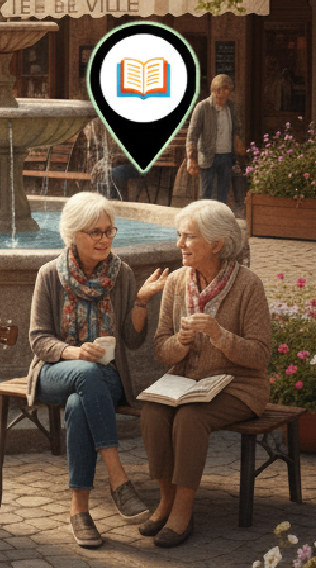
Clicking on any given individual or group will change the wallpaper to show them in focus. Details about their activity they have set to share with you will also become visible, like the document they're working on or the music they're listening to. A simple sun or moon icon within a sundial of sorts will show what time it is for the individuals, helping you assess whether or not it's a good time to bother them.
When a group is focused, a knock icon will appear that allows you to send them a “knock.” If they accept a request to join them, you'll open the same application as the one they are in.
Every experience will open as a window by default.
Details for designers only.
Skip this collapsible area unless you're tasked with designing the space.
The scene automatically adjusts itself if there are large groups of people working on the same thing from your friends list. Larger groups will gather at larger tables. Anyone you're not connected with will be represented as a small number next to the icons “+2 more”.
If an individual you're close to is engaged with a large group, the larger the group, the more chance they'll be surfaced at the front of the wallpaper.
In fact, the placement of individuals is not only there to help you find those who you care about, but help those in the Deme connect with other people in the Deme.
+200% chance if the person is a friend
+400% chance if the person is a close friend (a sliding scale depending on how close they are to you based on number of interactions, quality of collaborations, time spent in same space)
+100%-200% chance for each friends/close friends connected to your friend.
+50% chance for every Deme resident.
-50% chance for each person who is not in the Deme that’s in the group.
-200% for people listed as unwelcome by Deme that are in a group.
0% change for others.
Compared to this example, the square will in essence be somewhat larger, and if there are a lot of people online, the wallpaper will show from a position further back, revealing more of the square and more of the people in it.
Creating a gathering
Application driven
A gathering is a space in which a particular person is the host of an experience for others. There are two ways to start a gathering. Every application made for Synapse has a related 3D social space by default. Starting an application will open it in a window in front of your public square desktop.
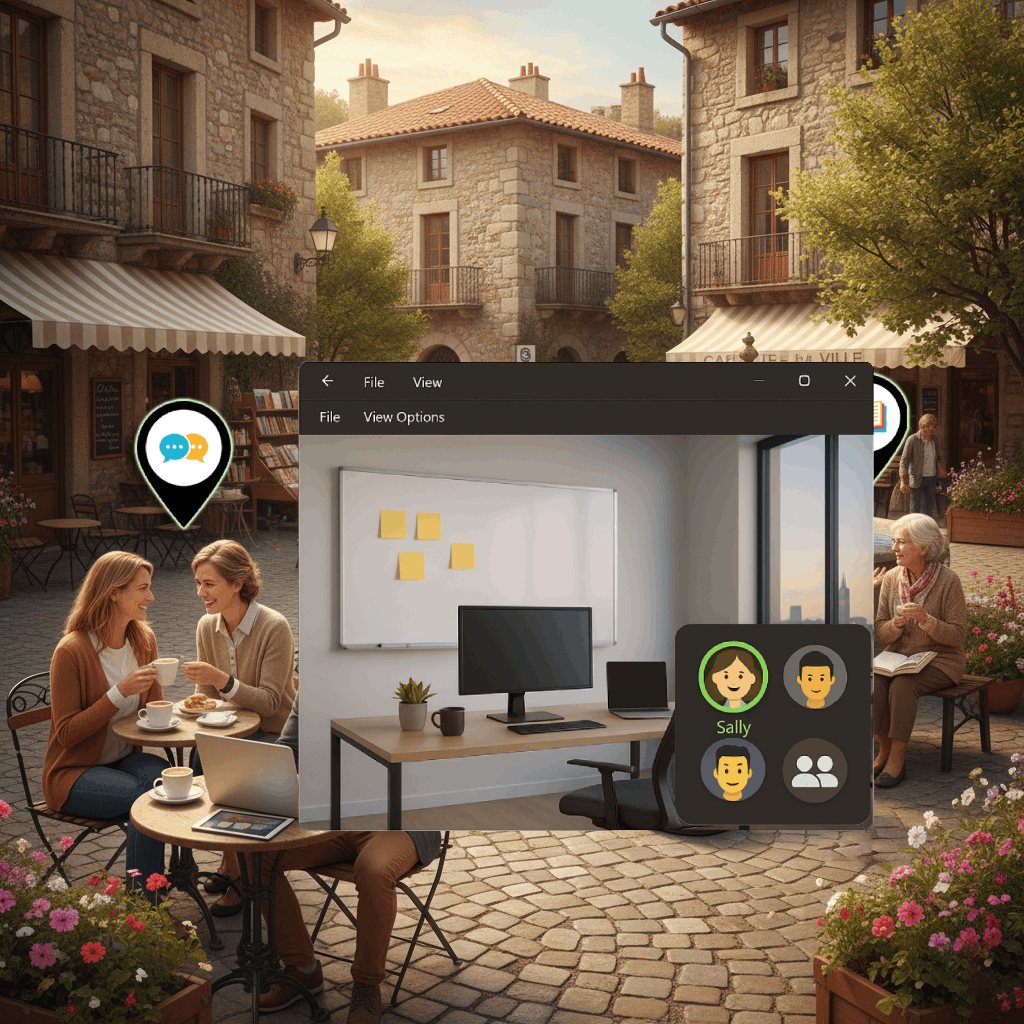
Dragging people from your public square into any particular application starts a gathering.
People-driven
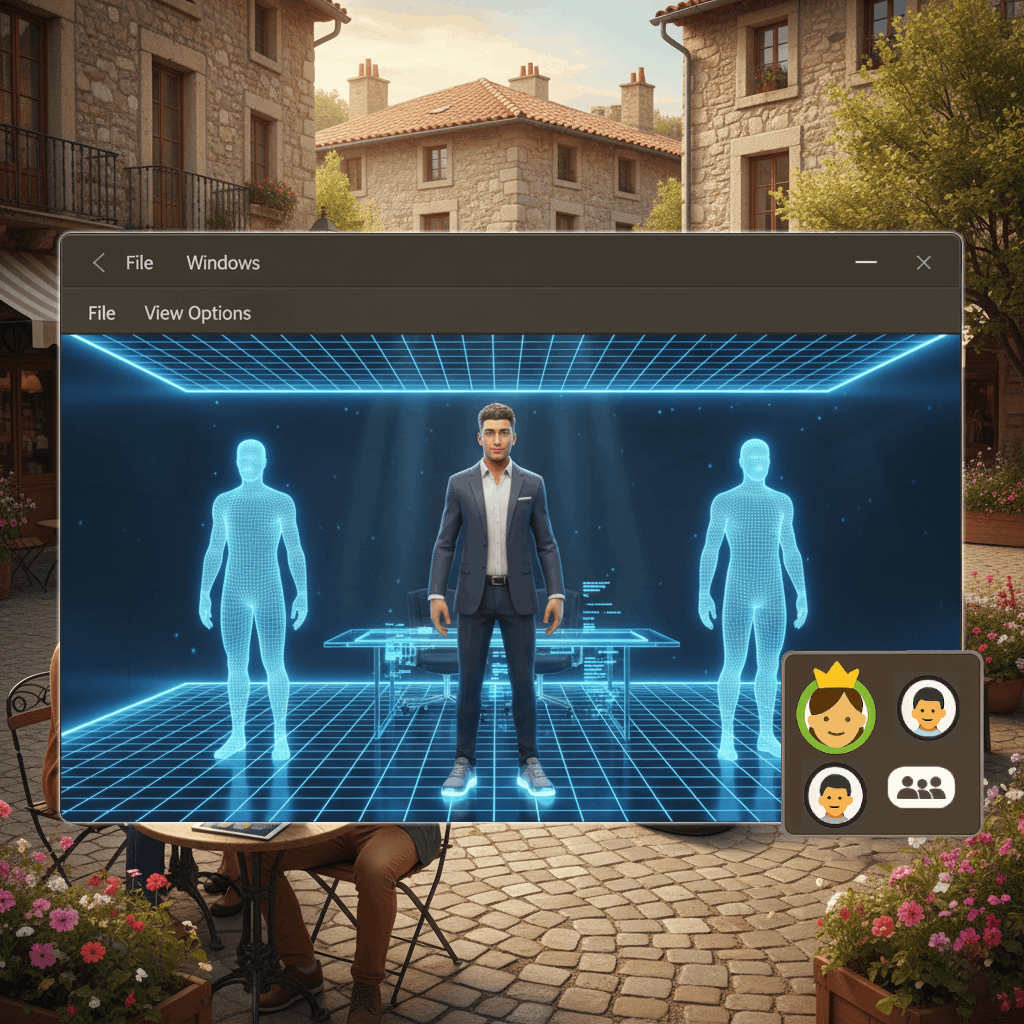
Clicking and dragging any particular person onto another person invites both those people to a gathering and opens a new window of an empty space that looks like a holodeck.
When doing so, you see your avatar waiting in the middle of your screen and two silhouettes of other people as you wait for them to accept.
Map-driven
One can also drag people from the desktop onto any buildings or spaces on a map, to be explained later. Buildings on the map can be tapped to open a collaboration-ready window with that app.
Item-driven
Dropping items, covered later, on a person invites them to a lobby. The lobby already contains the item. The invite specifies the item in question.
Icon
Dragging any particular individual from either the desktop or side menu will turn them into a 3D person icon with rigid body physics, allowing you to drag them and drop them onto windows and collaboration panels. The person turns into something like the 3D draggable Google Maps icon.
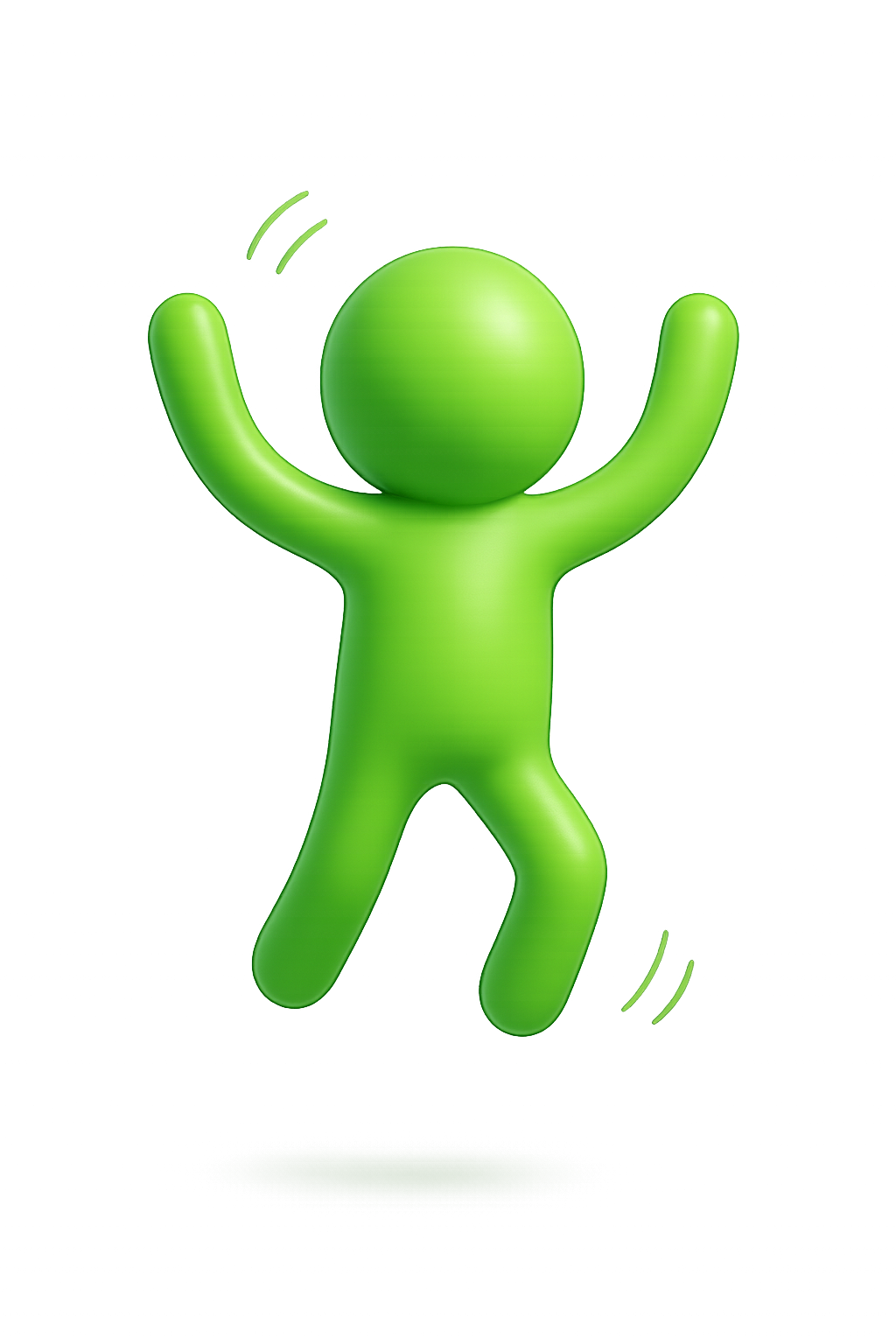
When dragging a person, the places you can drag them become highlighted, and a friends menu on the right, discussed later, opens up, allowing you to drag and drop them into different types of friends lists as a form of categorization.
Gathering space
By default, each application runs in a window and has a 3D component no matter how mundane, a calendar, a music player, or a virtual world, they are all spaces.
By default, when dragging a person into most spaces, they only get to see the space from one angle. For example, in a whiteboard application there may be a desk in front of the whiteboard.
The reason people are locked into one position is to create focus and to reduce confusion.
Permissions & panel
The collaboration panel on the bottom right of each window shows who's the driver of the space. A mix of the application's defaults along with the host's permissions will decide if people can unlock themselves and walk around the space.
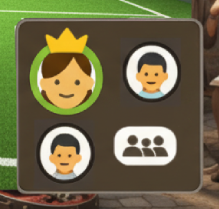
The panel also shows the point of focus for the individuals in question whether their desktop is highlighted their home space is highlighted or they are away, showing a Zzz symbol if they are away.
Finally, those who are speaking will have a green circle around their avatar.
Grounding & navigation
Like the home button on a phone, or the ability to swipe up to return to the home screen. So, the wallpaper acts as a grounding instrument, allowing people to always get back to the familiar.
Unlike a traditional desktop or home screen, one can change where they're grounded back to by simply navigating anywhere up throughout the space using Google Maps Like arrow keys. This allows a user to navigate, for example, to their home space and make that their desktop.
However, if they go outside of the public square and their home space, and the third saved area, they automatically open a window to enter that space. Within that window, the world is fully immersive like a 3D video game.
Grounding oneself in one's home space prioritizes the use of items, explained later, rather than connection with people.
Map
When one looks or swipes down in their public square space they see a map table. This map table shows a city and the individual's current location highlighted. The city is a relative space in which all the application/spaces the individual has visited recently are on the front row. This row is always reserved for recent visits.
Behind that is a customizable set of buildings and spaces that the individual can change simply by picking up and moving buildings around.
In the center of the table is a search icon which allows the individual to search from all experiences and those downloadable on the internet.
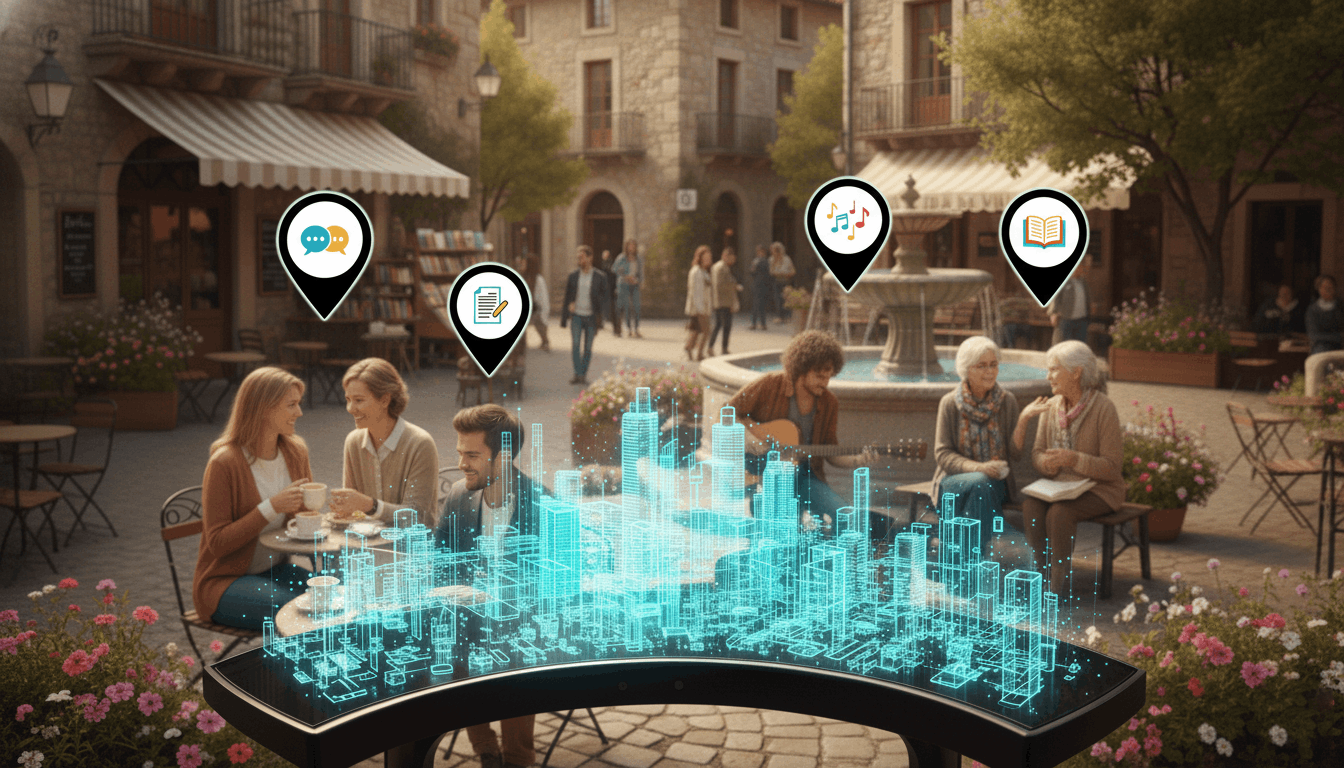
This image is quite inaccurate in that the map table will be larger and further below one's view with only the tops of buildings showing.
This city is an actual city, customizable by the individual in question, that lives just outside of the public square of the individual. The city gets automatically populated based on how often you visit spaces, but manually moving any building permanently locks that building into that particular space.
The map table is broken up into two distinct parts with a closer section showing recent spaces regardless of what the actual city looks like.
Details
Recent buildings don't show up when leaving the public square. They aren't in city per se, they are in another part of the city. They're just like teleports to those parts of the city. Teleports like this should look distinct from the other buildings. They should have purple highlights, which suggest they're leading someone somewhere else.
Each space is represented by a different type of building. A virtual world, for example, that has a mini golf course would actually be a mini golf course in the city. The application designer would design what the outside of the building looks like. In this case, they could simply design a gate which gates in the mini golf course.
However, the size of the inside of the space is not necessarily the size of the outside of the space. So if the golf course is the width of 70 buildings, it wouldn't actually represent that in the city by default.
Clicking and dragging anyone from the desktop wallpaper into one of the spaces will invite them to one of the spaces with you in a new window. Doing so in the space between two buildings will invite them to your city.
Once they accept, both of you will be exploring that part of your city in a window in a fully immersive virtual world.
Orientation
A critical point is that everyone who is immersed in an application will also be able to go out of that application simply by clicking on their desktop. When they do so, it freezes their avatar and the avatar slowly fades back into a blue and white grid from the bottom up over 10 minutes.
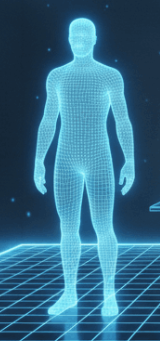
The key is that everyone is grounded in their public square even as they enter any immersive application.
Map
When leaving the public square, the map table becomes a pull-up tab. This means you can always find your teleports.
Multitasking
All experiences run in a window. Each window has a slightly colored surrounding which links to a related building on the recent part of the map table. This part of the table is like the task bar for a desktop computer, allowing you to see multiple spaces you're immersed in at any given time and switch between them.
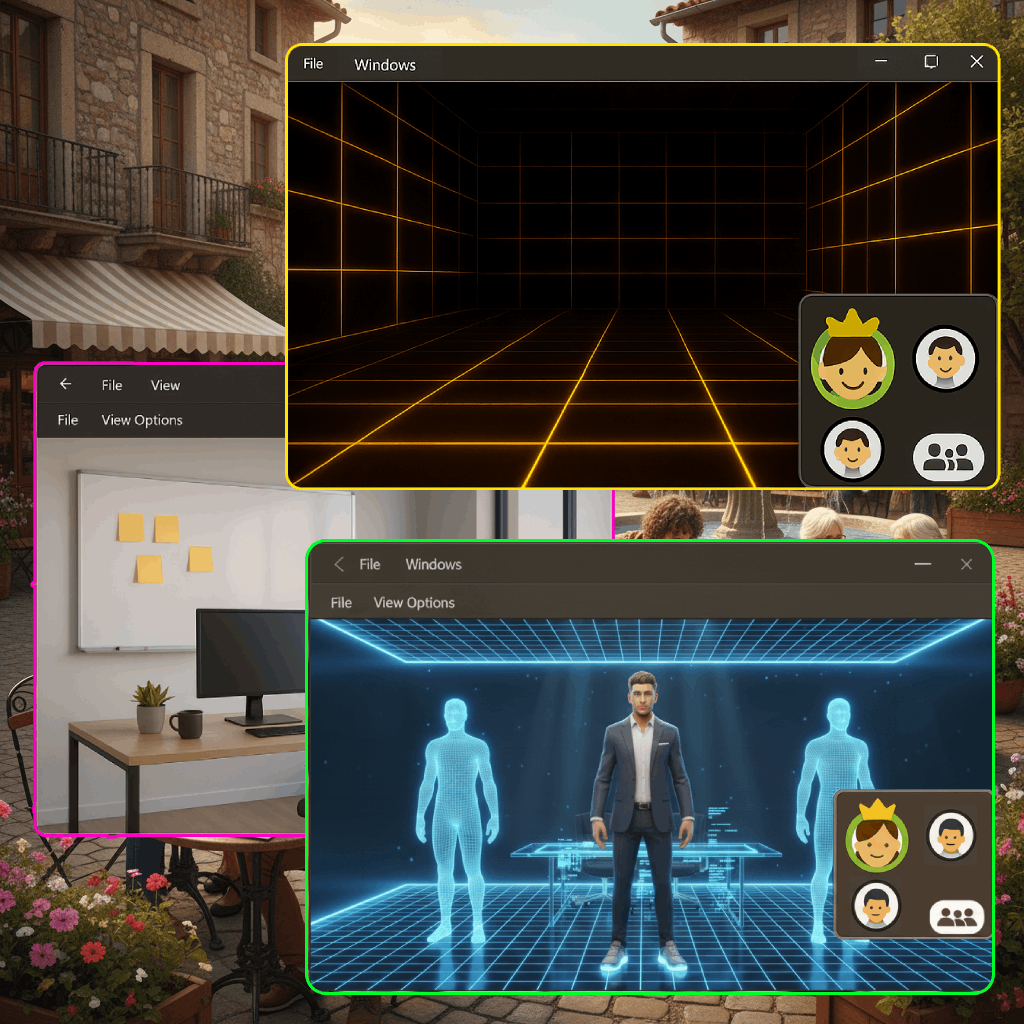
A global mute and deafen icon hover at all times on the bottom right of your desktop floating with you as you move your view so you can always find it. Individual mute and deafen capabilities can be seen in the collaboration panel in each experience.
Finally, the friends panel updates with a list of collaboration panels of all the worlds that your in, each collaboration panel being the color of the experience. Being visible in the friends panel allows you to move friends between collaborations or invite new people to collaborations simply by dragging people in.
Item interoperability
Just like people can click and drag to move people around, they can also move objects around, both in their public square and in their home space.
Anyone can move anything from their home or public square onto the table of a collaboration space.
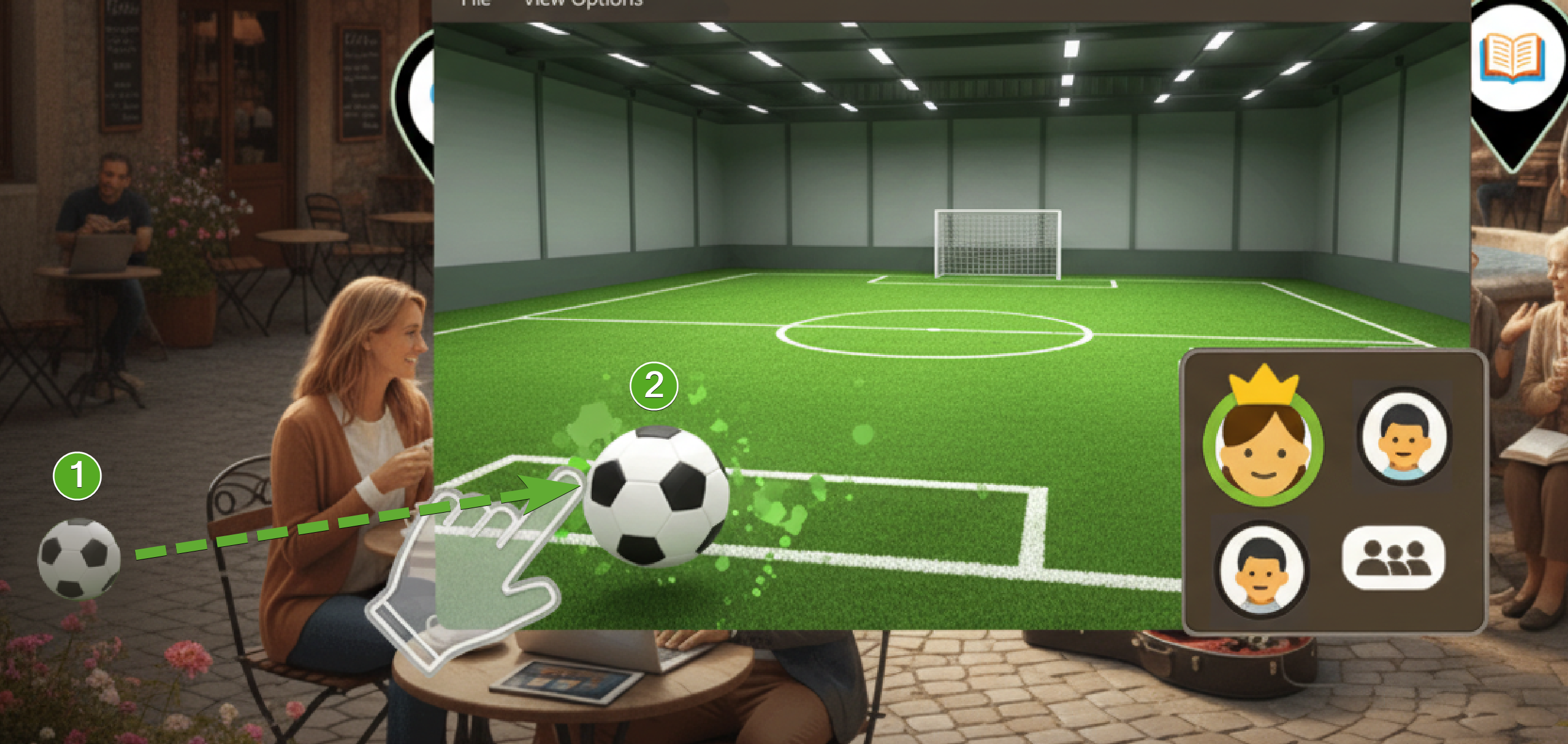
This allows people to have the window of one application open while grabbing one item in their home space and dragging it into that virtual world at the same time.
Anything can be moved between any space.
Each item is by nature singular, but copyable by default.
Spaces & photographs
Once a space is created, it exists forever and can be revisited by all the participants by default. The space is a singular shared space where every action taken is saved as part of the save state of the space. Each visitor to a space that leaves gets a copy of the space by default as a photograph they can hold and store.
What can be done in the space is determined by the application’s defaults and which permissions the host grants to guests, including if people get those photographs.
If any person makes any edits to that space while the others aren't there, those edits would sync with everyone’s photograph by default.
If two people visit the same photograph at the same time, they will see each other even if they are accessing that space much later on.
Finding others
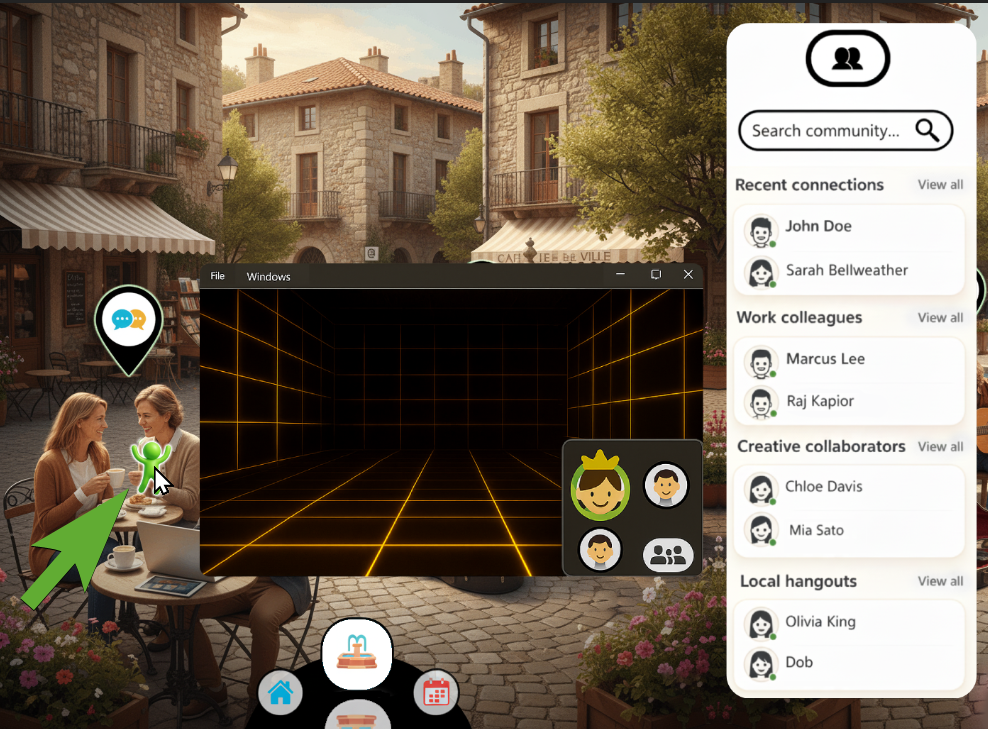
By default, on the right side of the screen, there's a people icon 👥. When clicked, the icon opens up a menu on the right side with the people that you interact most with. You can also drag these people into any window to invite them to the experience.
This allows you to search connections not surfaced by the desktop. This list is scrollable showing your seven most common connections first and then grouping further connections into groups based on their relationship to you.
Work colleagues would be in one section where gaming friends would be in another. These categorizations would happen automatically based on what apps you collaborate with people on.
Design details
The UI would be slightly transparent and properly colored. The faces of the avatars would be the actual faces of the avatars set up during creation. The view all button would not be visible in the same way and each section would represent at least seven people to start.
Ignore the navigation at the bottom. This is a former scraped feature.
This window automatically opens when dragging any person so that you can instead drag them onto a person in the window to create a gathering or organize that individual into a category.
Locking doors
Every experience has a door or a gate and can be unlocked by the owner of the experience. The owner can either unlock the door or duplicate the key already found in the door.
Unlocking the door and walking through will allow the others in the experience to enter the city of it’s owner from the ground floor of the position the space was in in that city.
Locking doors closes all the blinds in the building by default. And even when the blinds are open, they can't be seen through by those on the outside.
Walking outside a space
When a group leaves a particular space via the door the window and collaboration panel remain open. They are no longer in the “space” but it’s window and collab section are still open.
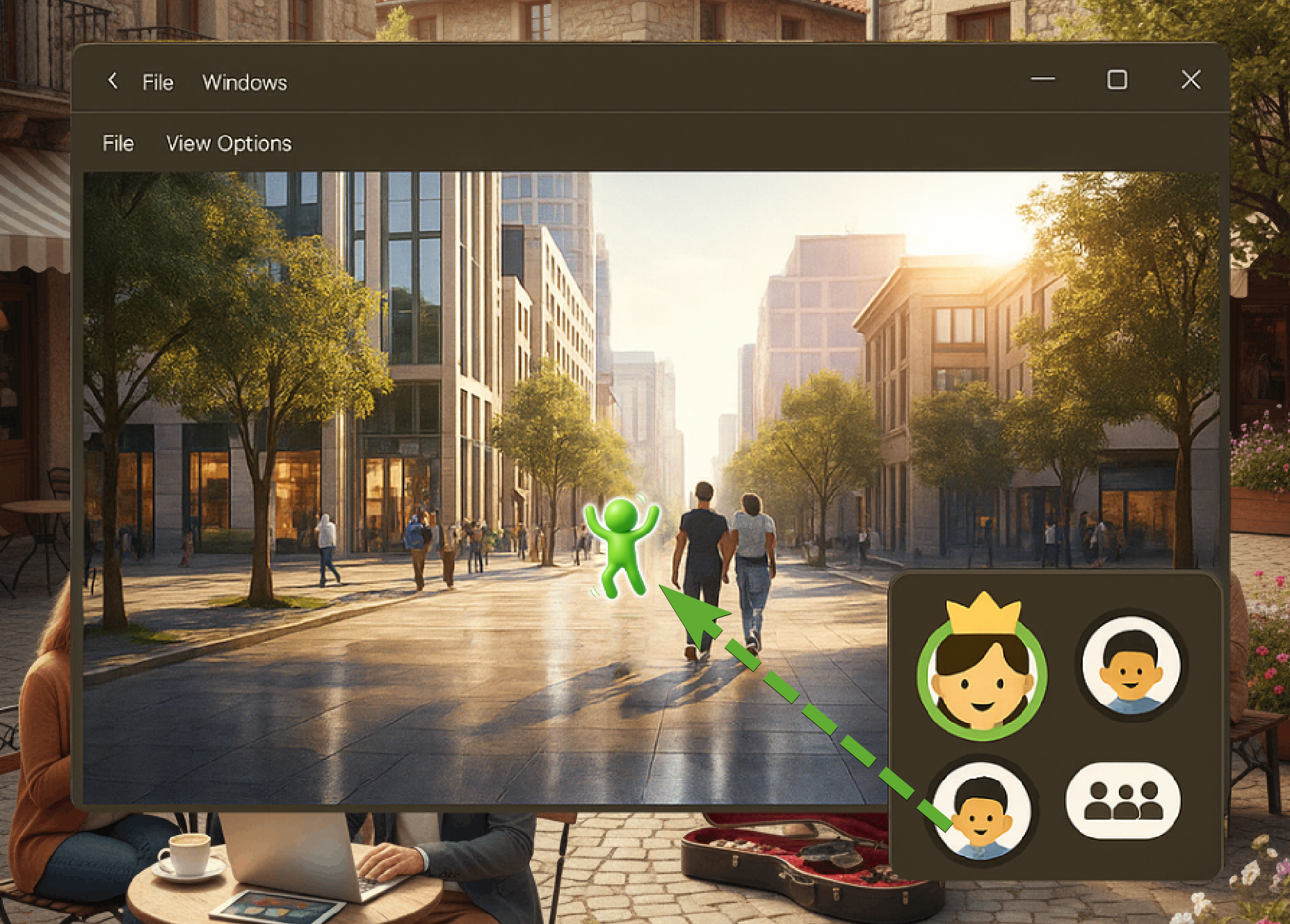
If anyone gets lost, the owner of the experience can drag their avatar icon back into a particular location in the experience to have them move to that area. By default, everyone placed will be looking the same direction as the individual that placed them.
The entire group can be teleported to a different experience simply by the owner looking down to the mapping table below the window and dragging one of the buildings into the window.
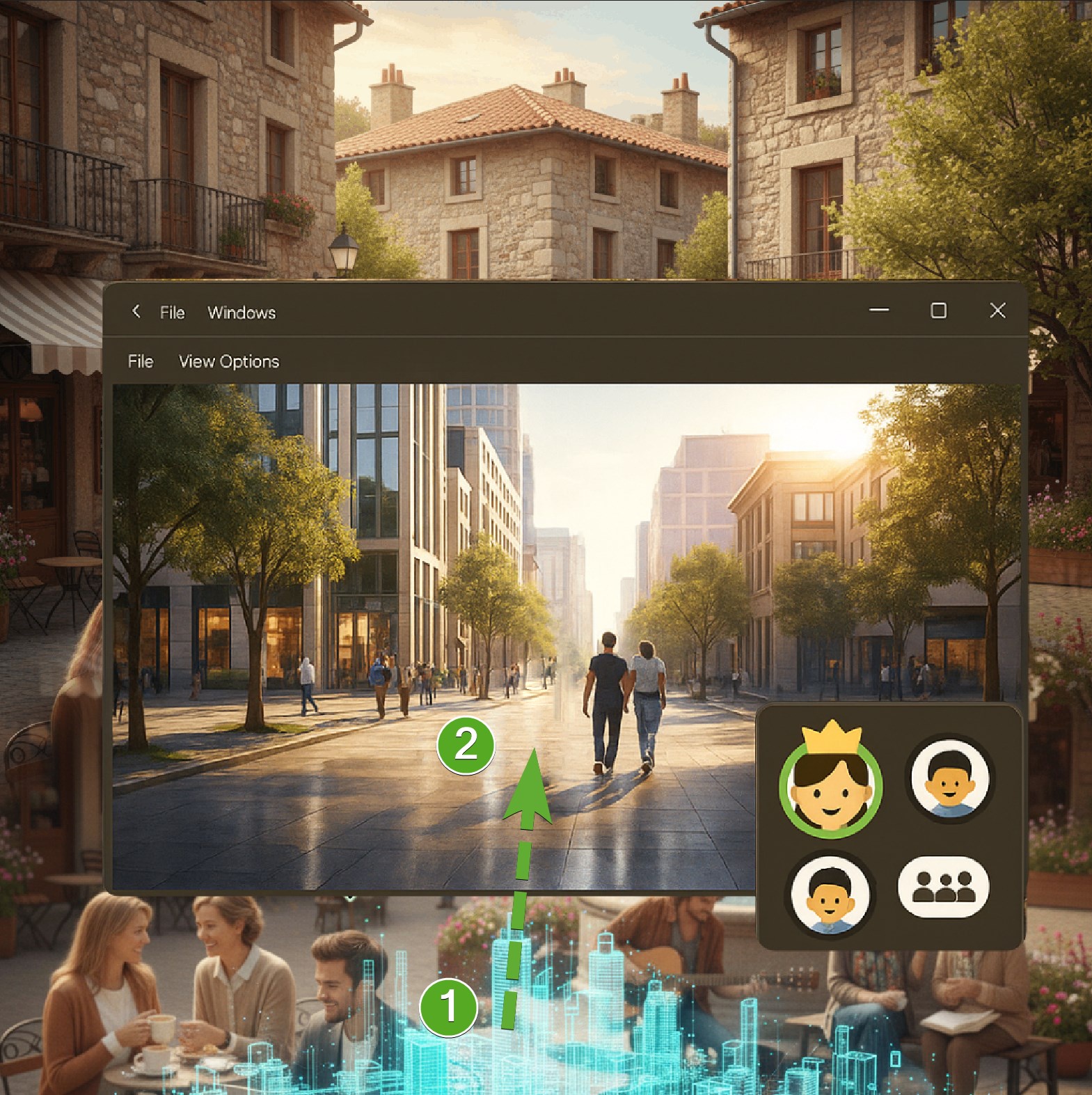
Anyone can actually take this action, but if anyone but the driver of the event does this, the driver has to approve the change of space.
Navigational simplicity
Navigation is locked for all windows or experiences that are not selected at a given time. For example, if you turn around with AR glasses on, while a particular window is selected, you'd turn around in that space, but not in the public square desktop below it.
Basic navigation toggle
An icon in the bottom left allows one to switch from basic navigation mode “Google Maps style navigation” to full immersive mode with one click. The option appears in the bottom left when leaving the public square (and going to one’s home for example).
When a host switches to basic navigation mode, the individuals in the collaboration are synced to their view.
Time and announcements
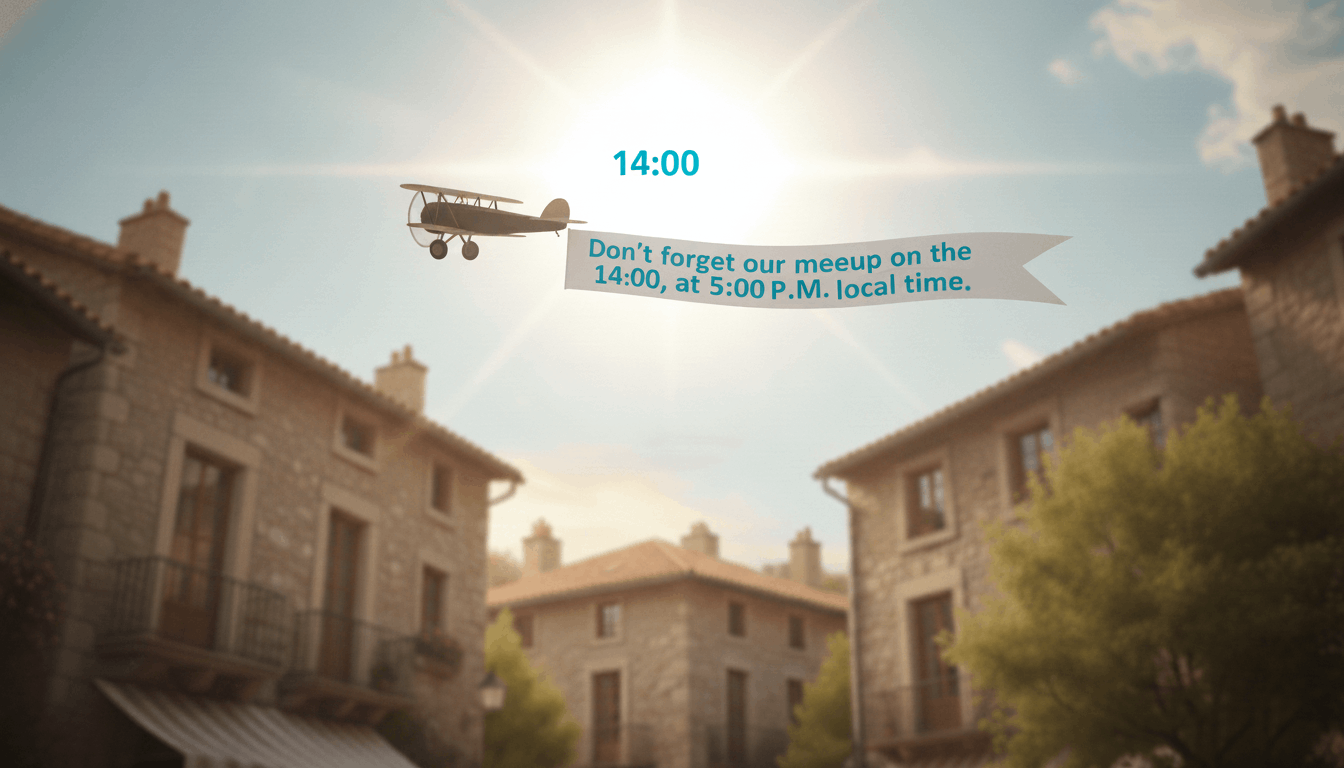
When looking up you would see hot air balloons and planes with banners behind them announcing different events from your Deme.
The time is in 24 hour time in UTC as a new global standard for time coordination of any event. But all times listed will automatically translate into your own local time zone as well using your computer's clock.
Included are navigational compass marks that direct individuals toward landmarks in their city, similar to first person shooter games but featuring logos of spaces.